Keyboard Shortcuts
Below you’ll find a complete list of all keyboard shortcuts in Agenda.
Agenda menu
| Shortcut |
|
Command |
| ⌘ , |
|
Preferences… |
| ⇧⌘ ⌫ |
|
Empty Trash… |
| ⌃ L |
|
Make App Private… |
| ⇧⌃ L |
|
Lock All Private Notes and Projects |
| ⌘ H |
|
Hide Agenda |
| ⌥⌘ H |
|
Hide Others |
| ⌘ Q |
|
Quit Agenda |
| ⌥⌘ Q |
|
Quit and Close All Windows |
File menu
| Shortcut |
|
Command |
| ⇧⌘ N |
|
New Project… |
| ⌥⌘ N |
|
New Category… |
| ⇧⌘ S |
|
New Smart Overview From Search… |
| ⌘ N |
|
New Note |
| ⌃⌘ N |
|
New Note After Selected Note |
| ⌘ O |
|
Open in Separate Window |
| ⌥ ⌘ O |
|
Open in New Window |
| ⌃ ⌘ O |
|
Open in Full Screen Window |
| ⌥ Space |
|
Open Quickly… (also ⇧⌘ O) |
| ⌘ W |
|
Close Window |
| ⌥⌘ W |
|
Close All Windows |
| ⌘ P |
|
Print… |
| ⌥⌘ P |
|
Print Selected Notes… |
Edit menu
| Shortcut |
|
Command |
| ⌘ Z |
|
Undo |
| ⇧⌘ Z |
|
Redo |
| ⌘ X |
|
Cut |
| ⌘ C |
|
Copy |
| ⇧⌘ M |
|
Copy as Markdown |
| ⇧⌘ H |
|
Copy as HTML |
| ⇧⌘ L |
|
Copy as Agenda Link |
| ⌘ V |
|
Paste |
| ⌥⇧⌘ V |
|
Paste and Match Style |
| ⌘ ⌫ |
|
Delete |
| ⌘ A |
|
Select All |
| ⇧⌃ ↑ |
|
Move Text Up |
| ⇧⌃ ↓ |
|
Move Text Down |
| ⌥ ⌘X |
|
Cut Unchecked Items |
| ⌥ ⌘C |
|
Copy Unchecked Items |
| ⌃⌘ C |
|
Check / Uncheck Item |
| ⌃⌥⌘ C |
|
Check / Uncheck All Items |
| ⌃⌘ B |
|
Move Checked Items to Bottom |
| ⌃ ⌥⌘ B |
|
Move Unchecked Items to New Note |
| ⌃⌘ R |
|
Add Row Above |
| ⌘ R |
|
Add Row Below |
| ⌃⌘ E |
|
Add Column Before |
| ⌘ E |
|
Add Column After |
| ⌘ F |
|
Find… |
| ⇧⌘ F |
|
Find in All Projects |
| ⌘ G |
|
Find Next |
| ⇧⌘ G |
|
Find Previous |
| ⌘ : |
|
Show Spelling and Grammar |
| ⌘ ; |
|
Spell Check Document Now |
| fn fn |
|
Start Dictation |
| ⌃⌘ Space |
|
Emoji & Symbols |
Note menu
| Shortcut |
|
Command |
| ⇧⌘ U |
|
Mark as On the Agenda / Remove from On the Agenda |
| ⌘ ⏎ |
|
Mark as Done / Undone |
| ⌥⌘ ⏎ |
|
Mark as Done Completely (also Removes from On the Agenda) |
| ⇧⌘ D |
|
Assign Date… |
| ⇧⌘ ⏎ |
|
Assign to Today |
| ⇧⌘ K |
|
Pin to Top / Unpin from Top |
| ⌃⇧⌘ K |
|
Make into Footnote / Unpin as Footnote |
| ⌃⌘ ↑ |
|
Move to Before Previous Note |
| ⌥⌃⌘ ↑ |
|
Move to Before First Note |
| ⌃⌘ ↓ |
|
Move to After Next Note |
| ⌥⌃⌘ ↓ |
|
Move to After Last Note |
| ⌥⌘ ↑ |
|
Collapse |
| ⌥⇧⌘ ↑ |
|
Collapse All |
| ⌥⌘ ↓ |
|
Expand |
| ⌥⇧⌘ ↓ |
|
Expand All |
| ⌘ / |
|
Precede by New Note / Split Note / Start New Note |
| ⌥⌘ / |
|
Merge Notes |
| ⌘ D |
|
Duplicate Note |
| ⌥⌘ ⌫ |
|
Move to Trash |
Insert menu
| Shortcut |
|
Command |
| ⇧⌘ T / # |
|
Tag |
| ⇧⌘ P / @ |
|
Person |
| ⇧⌘ R |
|
Reminder |
| ⇧⌘ Y |
|
Star |
| ⌃⌘, |
|
Current Date |
| ⌃⌘. |
|
Current Time |
| ⌃⌘H |
|
Horizontal Rule |
| ⌃⌘L |
|
Table |
| ⌘ K |
|
Add Web Link… |
| ⇧⌘ A |
|
Attach File… |
Format menu
| Shortcut |
|
Command |
| ⌃⌘ 0 |
|
Body Text |
| ⌃⌘ 1 |
|
Heading |
| ⌃⌘ 2 |
|
Sub-Heading |
| ⌃⌘ 3 |
|
Minor Heading |
| ⌃⌘ 4 |
|
Minor Sub-Heading |
| ⌃⌘ 5 |
|
Preformatted |
| ⌃⌘ 6 |
|
Block Quote |
| ⇧⌘ - |
|
Dashed / Bullet List |
| ⇧⌘ I |
|
Numbered List |
| ⇧⌘ C |
|
Checklist |
| ⌘ ] |
|
Increase Indentation |
| ⌘ [ |
|
Decrease Indentation |
| ⌘ B |
|
Bold |
| ⌘ I |
|
Italic |
| ⌘ U |
|
Underline |
| ⌘ ! |
|
Highlight |
| ⇧⌘ X |
|
Strikethrough |
| ⌘ L |
|
Fixed Width |
| ⌃⌘+ |
|
Superscript |
| ⌃⌘- |
|
Subscript |
View menu
| Shortcut |
|
Command |
| ⌘ 1 |
|
On The Agenda |
| ⌘ 2 |
|
Today |
| ⌘ 3..9 |
|
Select Smart Overviews in Sidebar |
| ⌃ 1 |
|
Project List |
| ⌃ 2 |
|
Table of Contents |
| ⌘ T |
|
Show Today’s Calendar |
| ⌥⌘ T |
|
Show Calendar Date… |
| ⌥⌘ ← |
|
Previous Day |
| ⌥⌘ → |
|
Next Day |
| ⌘ 0 |
|
Use Standard Text Size |
| ⌘ + / = |
|
Increase Text Size |
| ⌘ - |
|
Decrease Text Size |
| ⌥⌘ 0 |
|
Use Standard Text Spacing |
| ⌥⌘ + / = |
|
Enlarge Text Spacing |
| ⌥⌘ - |
|
Reduce Text Spacing |
| ⌃⌘ T |
|
Go to Today |
| ⌃⌘ S |
|
Go to Selected Note |
| ⌃⌘ ← |
|
Go Back in History |
| ⌃⌘ → |
|
Go Forward in History |
| ⌥⌘ S |
|
Show/Hide Projects Sidebar |
| ⌥⌘ R |
|
Show/Hide Related Panel |
| ⌥⌘ I |
|
Show/Hide Formatting Palette |
| ⌥⇧⌘ I |
|
Show/Hide Formatting Window |
| ⌃⌘ F |
|
Enter Full Screen |
Window menu
| Shortcut |
|
Command |
| ⌘ M |
|
Minimize |
| ⌥⌘ M |
|
Minimize All |
| ⇧⌘ 0 |
|
Main Window |
| ⌥⇧⌘ T |
|
Tags |
| ⌥⇧⌘ P |
|
People |
| ⌥⇧⌘ C |
|
Colors |
| ⌥⇧⌘ Y |
|
Templates |
| ⌥ ⇧⌘ O |
|
Stay on Top of Selected Note (Open in Floating Window) |
Help menu
| Shortcut |
|
Command |
| ⌘ ? |
|
Agenda Community |
Text Editing
| Shortcut |
|
Command |
| ⌥/⌃/⇧ ⏎ |
|
Insert soft (non-paragraph-breaking) return character |
| ⌥⇥ |
|
Insert tab character |
Keyboard Navigation
While focus is on the project sidebar:
| Shortcut |
|
Command |
| ⇥ / ⏎ / → |
|
Shift focus to the notes list |
| ↑ |
|
Select previous item |
| ↓ |
|
Select next item |
While focus is on the notes list:
| Shortcut |
|
Command |
| ⏎ |
|
Begin editing the selected note |
| ← |
|
Shift focus to the project sidebar |
| → |
|
Select note title |
| ⇧ ⇥ / ↑ |
|
Select previous note |
| ⇥ / ↓ |
|
Select next note |
| Escape |
|
End editing the selected note |
While focus is on the calendar popover:
| Shortcut |
|
Command |
| ← |
|
Select previous day (hold ⇧ to extend the selection) |
| → |
|
Select next day (hold ⇧ to extend the selection) |
| ⌥ ← |
|
Go to previous month |
| ⌥ → |
|
Go to next month |
| ↑ |
|
Select previous week (hold ⇧ to extend the selection) |
| ↓ |
|
Select next week (hold ⇧ to extend the selection) |
| ⌥ ↑ |
|
Go to previous year |
| ⌥ ↓ |
|
Go to next year |
| ⏎ |
|
Done / Save |
| Escape |
|
Cancel |
Modifiers
| Symbol |
|
Key |
| ⌘ |
|
command |
| ⌥ |
|
option/alt |
| ⌃ |
|
control/ctrl |
| ⇧ |
|
shift |
App Tip
Big thanks to @lunkmoln and @BruceN for the above tips!
Custom Keyboard Shortcuts
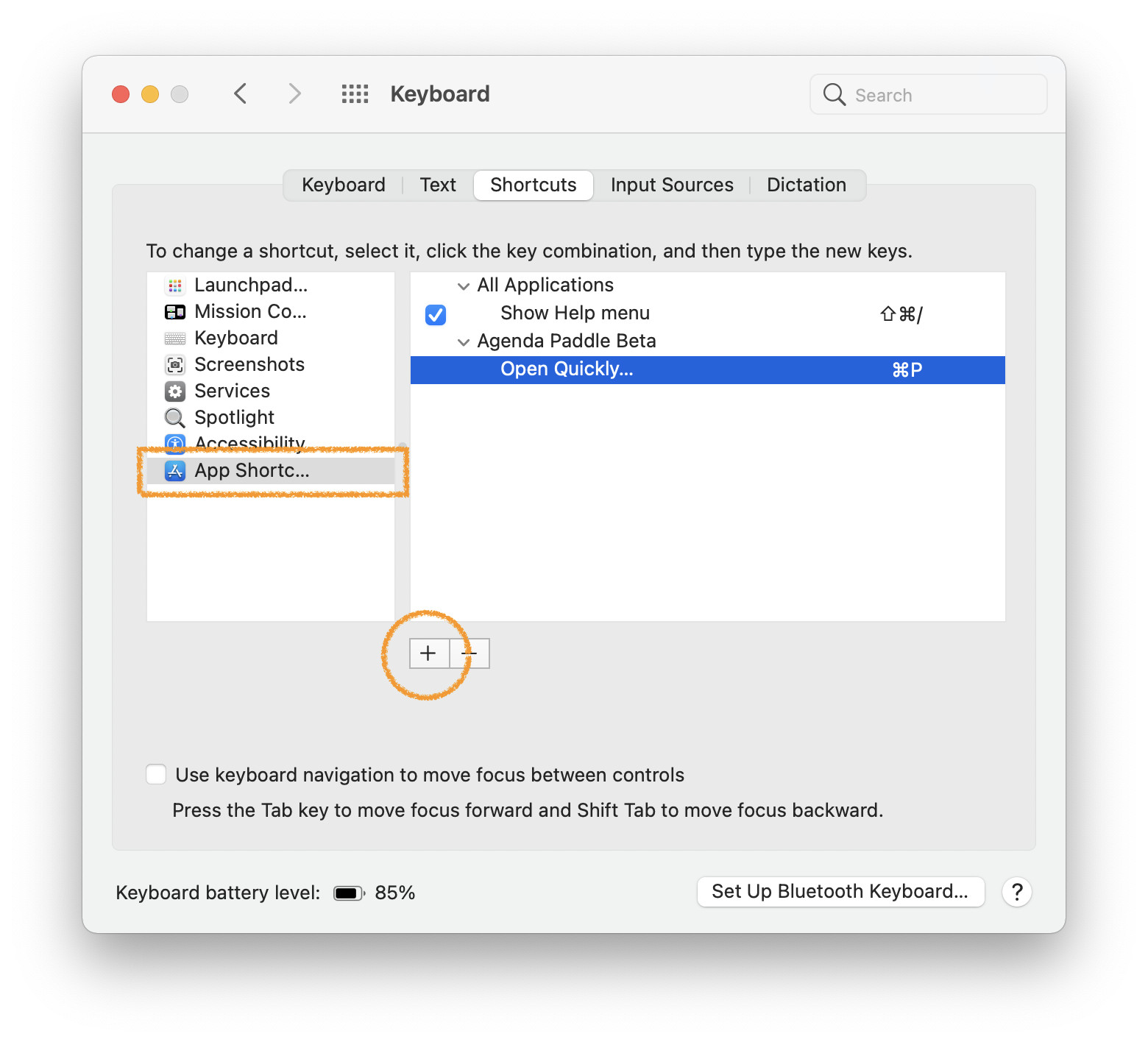
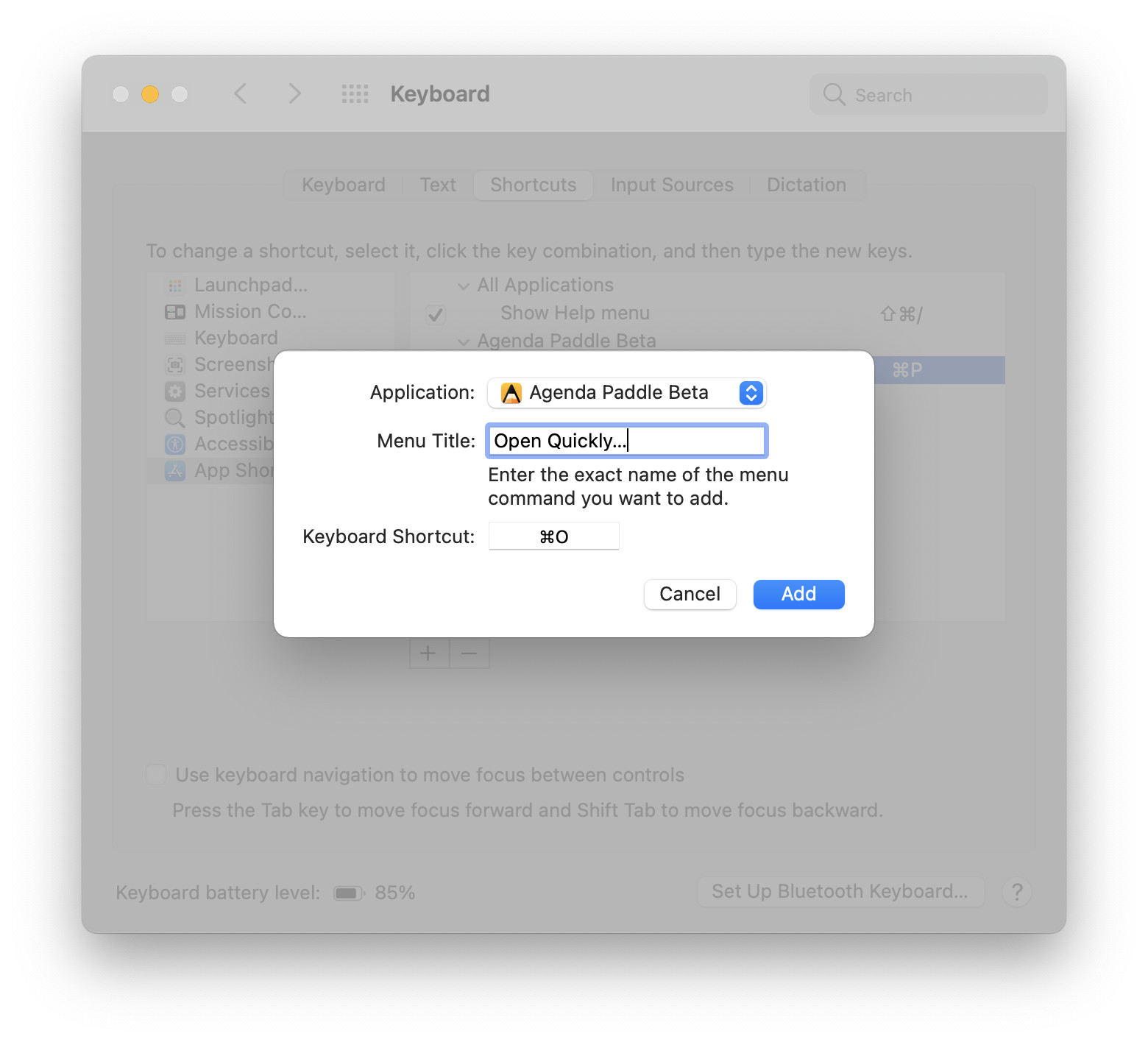
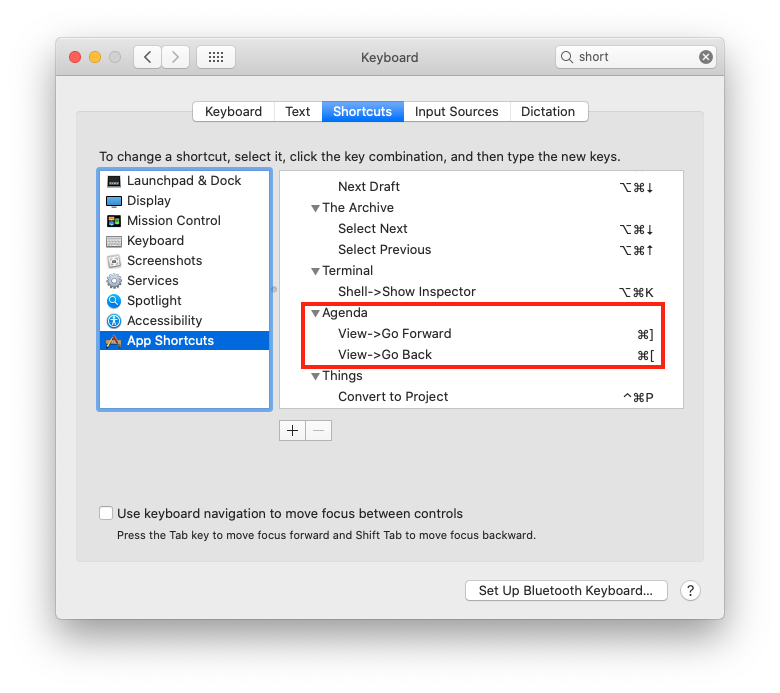
Did you know you can assign (and change) the keyboard shortcuts for Agenda yourself? For example you can re-assign the Open Quickly command a different shortcut by going to the System Settings > Keyboard > Shortcuts > App Shortcuts:
This works with any command, and also note that those are ellipses (… or ⌥ ;), not three periods.
When two menu items have the same name
Some names appear more than once in Agenda’s menus. For example there is a Red under Format > Highlight and another Red under Note > Mark with Color. If you just enter Red, macOS picks whichever it finds first, so you may end up colouring the whole note when you meant to highlight the selected text.
To remove the ambiguity, enter the full menu path in the Menu title field, using -> between the levels and no spaces around the arrows:
Format->Highlight->Red
That tells macOS exactly which Red you mean. Apple documents the syntax in Create keyboard shortcuts for apps on Mac.
Two things to watch out for, since the match has to be exact:
- Capitalisation and punctuation must match the menu exactly. For items ending in an ellipsis, that is a real … character, not three periods.
- Use a colour that actually exists in the menu. The Highlight colours are Accent Color, Red, Green, Blue, Yellow, Brown, Pink, Purple and Gray, plus any custom colours you have added. There is no Orange. If you enter a colour that isn’t there, nothing will match, and it looks like the path syntax failed when it didn’t.
Also worth knowing before you set anything up: Format > Highlight already has a built-in shortcut, ⇧⌘ 1. It toggles highlighting using your last-used colour. If you mostly stick to one colour, that may be all you need.