With the to do overview, how to get this to naturally populate? I have a To do project, but it doesn’t appear in the overview - I thought this would naturally be related to a date or another to do project. When I click the +, it just asks to create a new note in a project….any ideas?
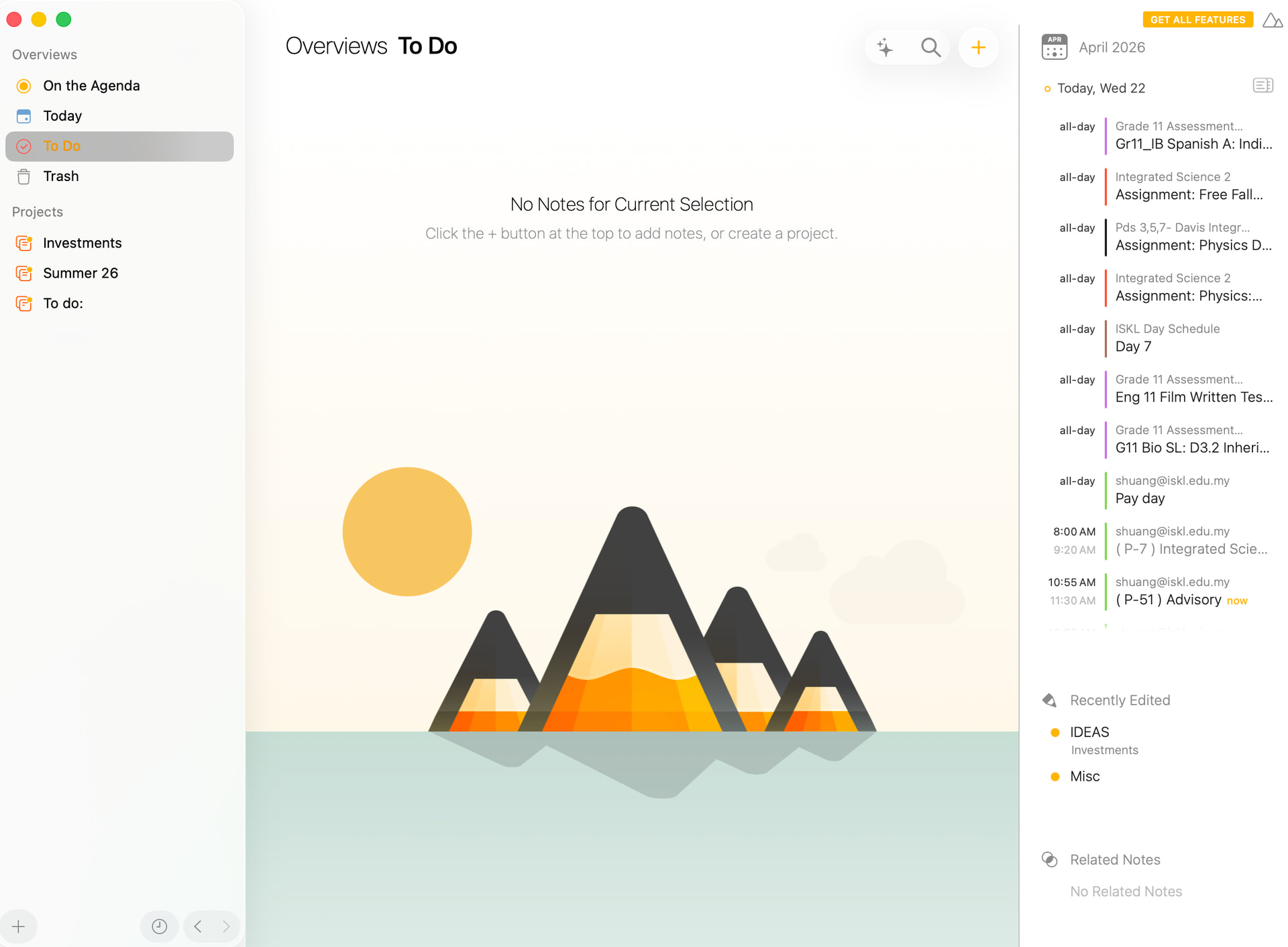
I believe the To Do overview is populated by notes that include checklists.
!!!
The To Do overview shows any note that has an unchecked item in it, ie an checklist item that has not been checked off yet.
Depending on how you use checklists, this may be very many notes. In that case, it may be better to setup your own overview, searching for \todo and adding other criteria (eg a tag) to narrow down the number of notes you see in the overview.
The others are right. The To Do overview shows notes that contain checklist items. So if you add some checklist items to your notes, they will appear in the overview automatically.
BTW: Is it possible to hide the To Do overview from the Projects Sidebar?
I use checklists in different ways: e.g., as subtasks, for shopping lists, participant lists. So the To Do overview integrates different types of information what does not make sense for me.
I’d prefer to use my own smart filters and hide the To Do overview.
There have already been numerous discussions on this topic.
I no longer use this overly simplistic To-Do overview at all. I constantly feel that I lack the freedom to decide for myself which results should be displayed.
Everything I need is stored in the smart overviews. There’s a strict separation between work and personal tasks, and actual to-dos. These are mainly filtered using tags, which keeps them neatly separate from one another.
I’m sure there are other ways people might prefer to do it.
We don’t yet have a way to say which built-ins are shown and which aren’t. There are not so many of them, so it is not too bad. But we would like to add this feature.
You can use tags and search terms like \todo to build your own specialized To Do overview. If you need more control, that makes sense.
Don’t forget too that you can set a paragraph level filter, so — for example — you only see the unchecked items. You do that by clicking the project title at the top of the list and using button top-right.