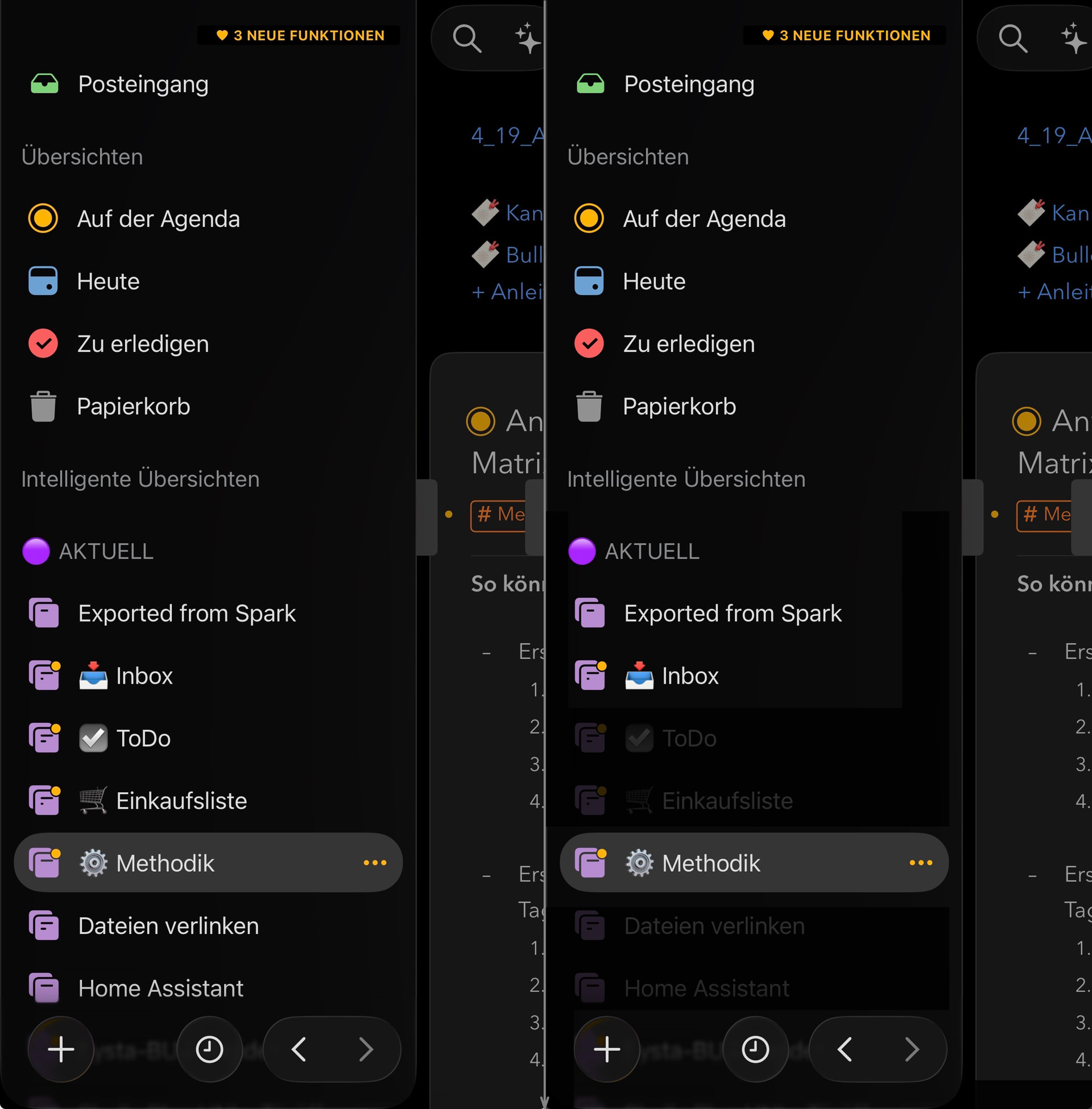
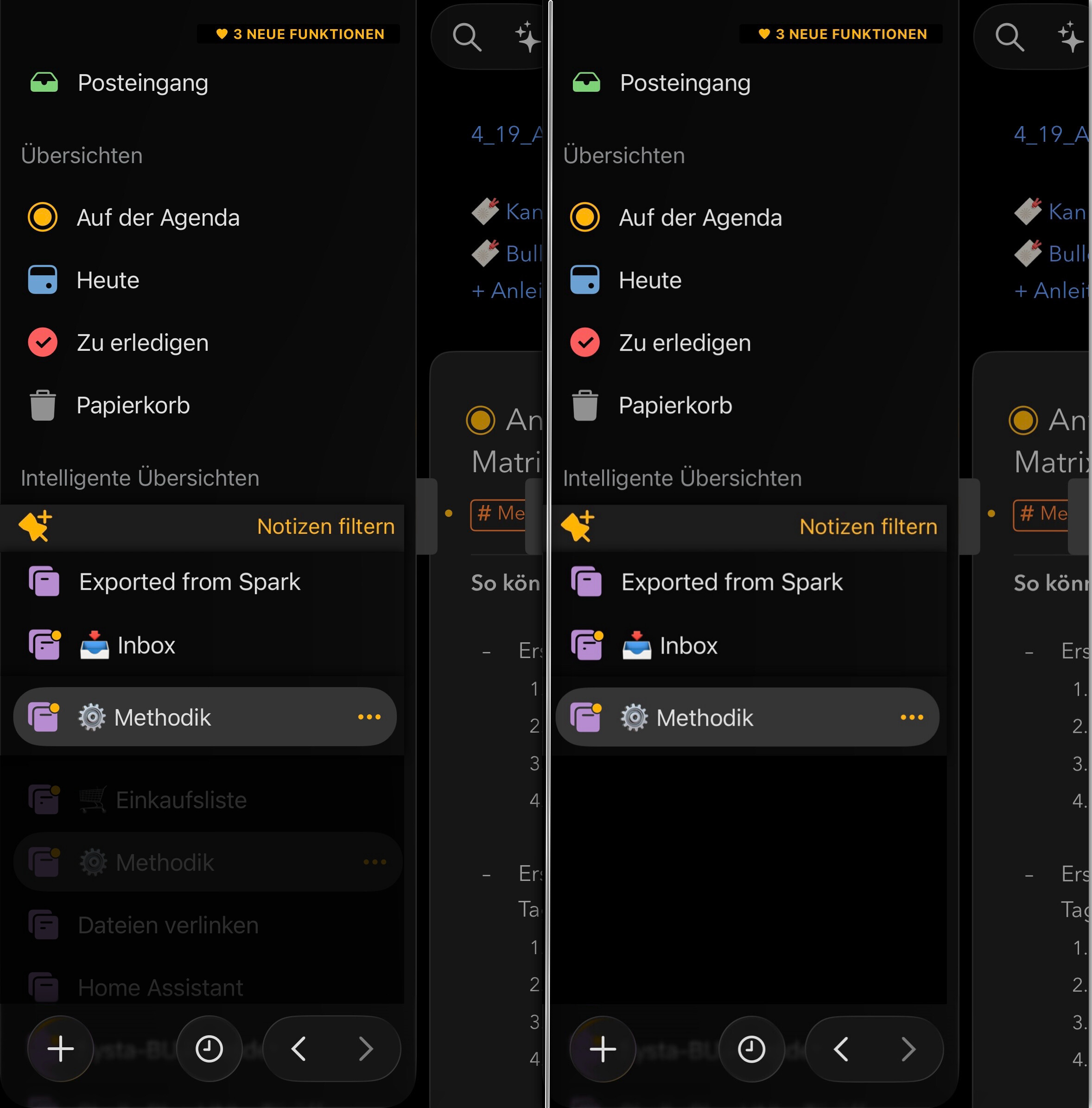
I’ve found comments regarding highly populated projects sidebar slowing workflow but not many viable solutions suggested. It really is a narrow field to modify. If you’re working in multiple projects/categories throughout your directory the idle projects really do slow one down a bit and cause a quick blip in your thought process which is already a few steps ahead. So what if you’re working, have 50 projects total with 3 currently being used and all but those 3 are grayed out “or even title text only greyed”? I can only speak for myself but I would automatically focus on those three. Adding to or clearing the grey could be done one at a time if needed as you go.
Another option could be to show the title of those being used as a truncated project list.That’s not as simple as the first suggestion, just thought l would toss it in.
I think it would be great if the clock icon at the bottom of the project sidebar had a filter that you could customize as you like.
Similar to the search function, you could then filter by tags, names, OTA, or whatever else, and consistently hide all projects that don’t match the criteria. Clicking on the clock would show everything again.
I believe that things you can’t see at all can’t distract or bother you.
Additionally, projects could also be pinned or marked. A “pinned” or “marked” filter would make the custom project views even more convenient.
Furthermore, when using the filter function, the list of smart overviews should automatically collapse.
The Focus feature should also include these filters.
Thanks for the ideas. This overlaps with the recent discussion about filtering the sidebar by On the Agenda. The closest existing feature is the recent-projects filter, the clock at the bottom of the sidebar. If you long press it, you get some options. We are already considering adding an On the Agenda option to that menu.
Making those filter criteria more customizable, along the lines Roms describes, is an interesting direction. We’ll take it along.
Whether the non-matching projects should be hidden or greyed out is a good question. You two already disagree on that one, which suggests it may end up needing to be a choice.
Let me put it another way:
Irrelevant projects should be completely hidden rather than just grayed out. In my opinion, graying out alone cannot completely prevent the distraction.
My bad, I wasn’t that clear either. I made my comment largely in a philosophical context, (old military). I get the feeling that we’re not exactly speaking apples to apples. I think that you might be thinking of a longer term implementation than I am. Like the purpose is to set the stage for working with the same package of a few projects for more than a few hours or days. That scenario would justify the time for the process of distilling with filters to the set you need. I was thinking of a more short term action, where the few projects needed to work with for the next hours were known, quickly selected, and could be adjusted ie; selected/unselected on the fly which would need some degree readability. Your method, I think, would be implemented or altered by setting up saved “filter sets” with the intent of extended use. I just noticed one thing neither of us mentioned and that would be the use of multiple windows. Sometimes I wish we had tabs.
From my perspective:
I wasn’t specifically thinking about a long-term implementation or application. There were some images and functional processes in my head before I wrote the text. In that moment, there’s no drawer with a label on it yet.
I believe that something like the individual filter, through a high degree of flexibility, can reach every user. It’s always a question of accessibility, simplicity, and the way it’s implemented.
I also suggested being able to quickly pin projects in the list or mark them in some way (e.g. with a ). What I meant by that goes more in your direction — functionally similar to the quick graying-out. Maybe combine both, and with a click on the clock, quickly expand the focus onto the essentials when needed?
Regarding your idea of using multiple windows and tabs, I’m still missing some mental images. How exactly do you picture that?
I didn’t ignore this, I kind of got tied up elsewhere. I see the differences between greyed-out and hidden. On a black background the greyed out is mostly unreadable. My original idea was not to make the unchosen invisible but less visible, this didn’t work. For the selected group (set) to be quickly and easily added to or subtracted from the others it needs to be visible, for both selection methods. I also realized a spacial issue, if there were 2 or more selected focus projects they could be spread top to bottom of the panel. Also, selection method should be flexible and independent of any intended operation. Search/filter > addorselect > add individually. One possibility for this is a separate space to hold the selected project titles group placed above the +, new proj/cat, forward/back buttons. It would expand per addition of selected group items somewhat like the related panel and timeline. Those titles would simply function as links to the actual projects which would open in the main or new windows Once done with selection there would need to be an action to activate the group and hide the remainder of the directory and similar action to unhide and be back in panel selection mode.For now, I have a couple groups that are opened on a daily basis as a sub-cats with the occasional addition/subtraction throughout the day.
It could open up a lot of uses if there were a multi-purpose window to jump from
 ). What I meant by that goes more in your direction — functionally similar to the quick graying-out. Maybe combine both, and with a click on the clock, quickly expand the focus onto the essentials when needed?